

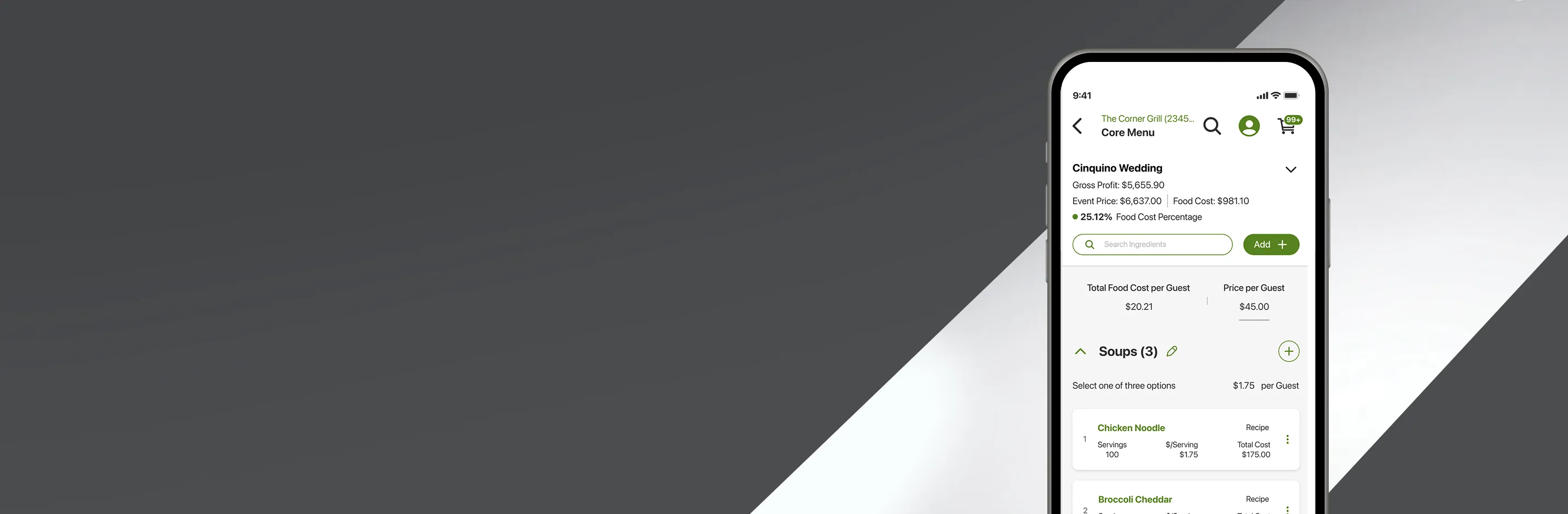

Event Menus in Menu IQ™ help you calculate food cost with ease
Whether you're planning weddings, catering jobs, corporate functions or holiday gatherings, Menu IQ™ helps you build event menus, calculate food costs and determine pricing before sending a quote to your customer. By connecting event planning with Menu IQ food costing data, you can better understand profitability and make informed pricing decisions. With better visibility into cost per guest, food cost and estimated profit, Menu IQ helps you protect margins and turn large catered events into profitable opportunities.
What Are Event Menus in Menu IQ?
Event Menus allow users to build, price and manage larger catered or pre-planned events directly within Menu IQ. The feature helps calculate food costs, compare pricing options and estimate profitability before finalizing pricing with customers.
Where to Begin.
1. Start from the Event Menus List
Start in the Event Menus list when you need to create a new event or manage an existing event. From this list, you can organize event menus and take action on one or multiple events at the same time.
- Select one or more events from the list
- Use available actions under the three dots to Copy, Archive or Delete events
- Choose Add Event Menu to start a new event or “+” on mobile
Note: Use Archive when an event should no longer appear in active planning but may still be needed later. Use Delete only when you are sure the event is no longer needed.
2. Enter the Event Details
Enter the basic event information first. These details help identify the event, support accurate planning and make the event easier to find later.
- Event Name: Enter a name that is easy to search for and recognize
- Lock: Choose whether other users can make changes
- Category: Select the event type, such as wedding or another applicable category
- Date: Add the date the event will take place
- Description/Notes: Add helpful planning details or event-specific notes
- Guest Count: Enter the approximate number of expected guests
3. Choose the Pricing Structure
Choose the pricing structure that matches how you plan to charge the customer. Selecting the right structure helps Menu IQ calculate pricing, cost and profit in the same way the event will be billed.
- Fixed Rate: Use when pricing is set per guest
- Variable Rate: Use when pricing is set per item or meal option
- Choose the option that best reflects how the customer will be charged
4. Build the Event Menu
Add the food options included in the event by selecting from existing menu items or products. This connects the event to serving costs that have already been set up for each item.
- Add each food option included in the event, such as entrées, desserts or other menu items
- Enter the serving or guest count for each item
- Review the calculated total cost for each item based on serving cost and quantity
- Replace an item if the event offerings change during planning
Note: If the menu changes during planning, replace the item directly instead of rebuilding the full event. After replacing an item, review guest counts and costs to confirm the event totals are still accurate.
5. Review Food Cost and Profit
Once menu items and counts are entered, review the event totals before quoting the customer. Menu IQ updates the food cost percentage, total event cost and estimated profit as pricing or quantities change.
- Review the estimated Food Cost per Guest
- Enter or adjust the Price per Guest for fixed-rate events
- Use the food cost target or pricing controls to see how changes affect profitability
- Update head counts or pricing fields as planning details change
Helpful tip: Validate the event cost before providing a quote. Changes to guest count, menu mix or price per guest can affect the final profit.
6. Lock the Event Menu
After the menu, pricing and guest counts are finalized, use Lock to protect the confirmed event details. Locking allows other users to view the event for execution while preventing unintended changes.
- Use Lock after pricing, menu items and guest counts are confirmed
- Locked events remain visible to users who may need the details to support execution
- Only users with permission to make changes should update locked event details
Caution: Confirm the event name, date, menu items, guest counts, pricing and notes before using Lock. Locked event details should only be changed by users with the appropriate permissions.
Note: Cost savings displayed are estimates for illustrative purposes only. Actual cost savings will vary by operation.