

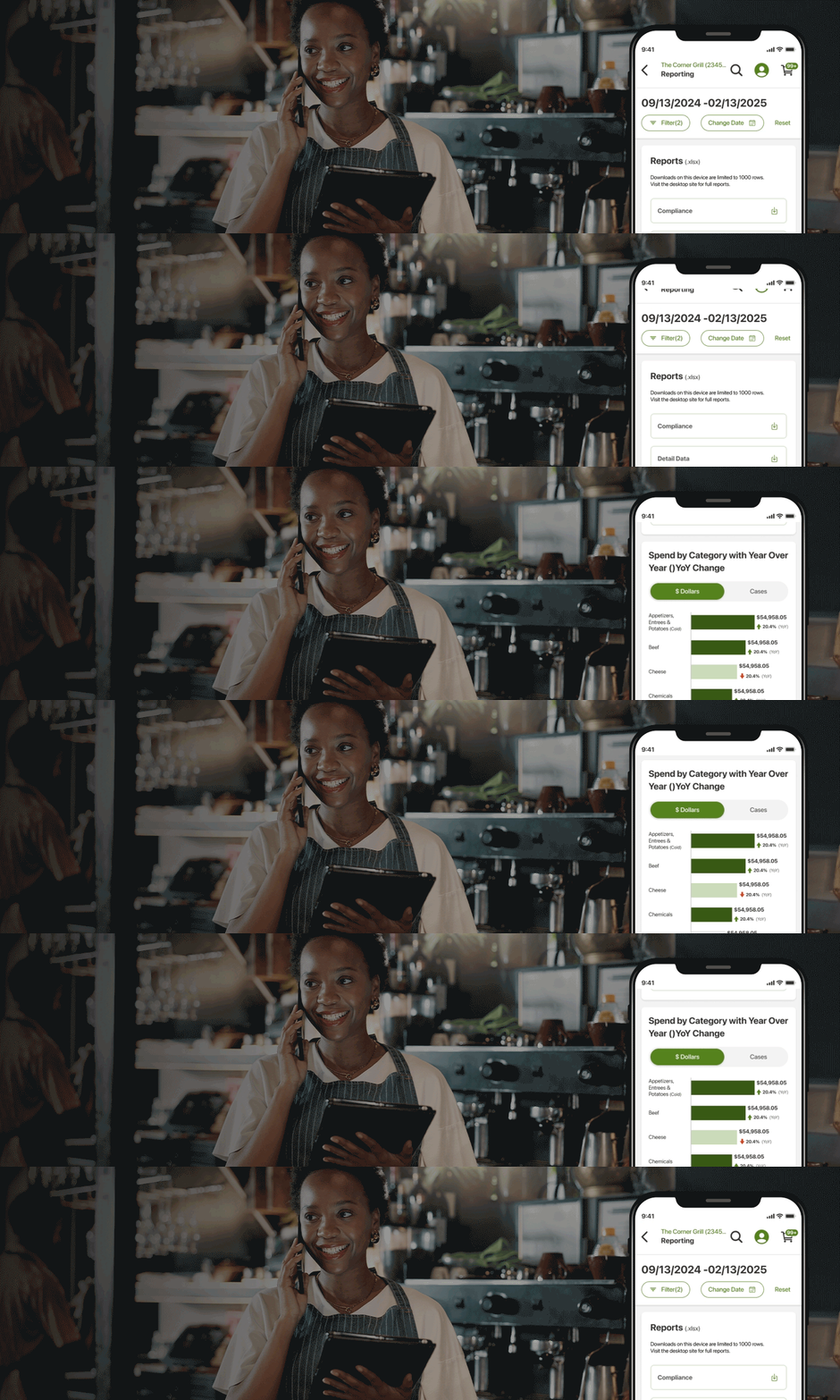
MOXē® Reporting empowers smarter decisions for your operation. Get powerful, on-time and personalized reports for the clarity you need to drive success.

How to Access
You can find Reporting under the “My Business” dropdown in MOXē Desktop and in the “Menu” tab on your mobile device under “My Business”

Dashboard
The Reporting Dashboard gives you quick access to common reports. Detail Data, Product Usage and Invoice History are available to all customers. Additional resources may be available based on the user's account.
Filters
From the top of the page, you can start by setting filters. This includes date range, and what location you wish to generate reports for, if you manage multiple locations.
Filters
Date Range
The date range is the range for the Delivery Date. In most instances, the delivery date equals the invoice date. When selected by Time Frame, the following guidelines apply:
Last closed week – Week starts on Sunday and ends on Saturday
Last closed month – Month starts on the first day of the month and ends on the last day of the month
Last closed quarter – Quarter starts on the first day of the first month of the quarter and ends on the last day of the last month in the quarter
All other date ranges start on the first day of the first month of the date range and ends on the last day of the last month in the date range
Year to date – Starts on January 1 through the prior day
Filters
Multiple Locations
If users manage multiple customers, choose what customer, or group of customers, you wish to see data for.
Standard Reports
Once your filters are set, the next section of the screen will allow you to jump to some common reports. Reports are displayed in an easy-to-ready and sortable format.
Detail Data is a complete list–including the customer’s name, address, invoice numbers and credit memo numbers, order numbers and even the order date, all in one place.
Invoice History
Invoice History view gives us the most complete view of invoices. Including order dates, invoice dates, totals, taxes, case counts and other charges
Product Usage
Product Usage view provides a breakdown of all products purchased.
Product Usage report has some additional filters on the top right of the report. Users can toggle from a detailed view to a Summary, and access additional views from the drop-down menu.
Downloading
For greater detail, ease of sorting and future use, users may choose to download your reports as a CSV or XLSX file. Download is located under the report title and date at the top left of the page.
Download History
From the main dashboard, users can also access a 15-day history of downloaded reports, making it easier to go back and reference reports without having to rerun them.
Spend by Category
From the dashboard, users also have a visual representation of spend by category. This can be displayed either in dollars spent or Cases Purchased.
Top Purchases
From the bottom of the dashboard, users can access a visual representation of top purchases.